Secure family access

Your Academy Swim Team Members Portal

Everything your family needs in one place: meet entries, galas and club events, training times, results, invoices — plus the club calendar and notifications so nothing is missed.

Linked to your household

Families see only the swimmers and records connected to their portal account.

Built around real club data

Squads, results, entries, attendance, and billing stay connected instead of living in separate forms.

Works on phone or computer

Every screen below is the same layout on a phone. Add the club calendar and notifications so the club comes to you.

Getting started

How the portal becomes available

Submitting the membership and medical form starts the club process; it does not create an immediate login. Your account is prepared after membership has been accepted and the club has set up the correct swimmer and household records.

  1. 1

    Submit the membership form

    The form gives the club the contact, medical, consent, and household information needed to review and create the membership record.

  2. 2

    Membership is accepted and set up

    The club confirms the place, creates or updates the swimmer and family group, assigns the appropriate squad, and links portal permissions.

  3. 3

    Open the setup email

    Look for “Set up your Academy Swim Team portal account”. Its personal password link is valid for 24 hours.

  4. 4

    Set a password and sign in

    Create a secure password, then sign in with the email address that received the invitation. The Member Login link is in the website header.

No setup email yet?

Wait until the club has confirmed membership and finished setting up the household. If the account is ready but the message is missing, check spam or junk. An expired link can be replaced by the Club Secretary.

Find your way around

Where everything lives

The portal menu is organised by what you are trying to do. Anything the club is waiting on you for sits under Activities.

Dashboard

Household overview: swimmers, open and entered meets, recent results, invoices, and the week ahead.

Swimmers

Each linked swimmer’s squad, Swim England category, permissions, results, and record-change requests.

Training

Schedule, Attendance History, seasonal timetables, Test Sets, and Self-Led Training where it applies.

Activities

Swim Meets, Galas, Club Events, and the Qualify Checker. This is where the club asks you to act.

Results

Personal Bests, Results History, and Time Progression, in short course and long course.

Invoices

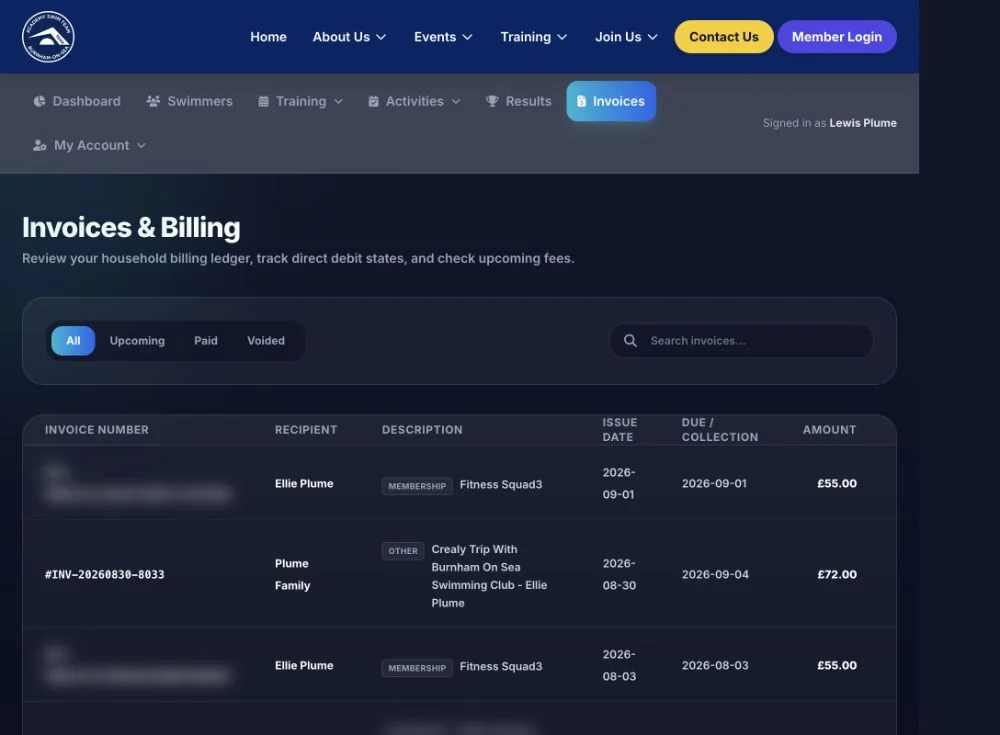
The household billing ledger: upcoming, paid, and voided invoices with line items and payment status.

My Account

Account details, notifications, the personal club calendar, password, and My Volunteering where linked.

Competitions

Enter a swim meet

Official entries are made in the Members Portal, not in Spond. A meet only appears as open once the club has the organiser’s pack and has set the club deadline.

  1. Open Activities → Swim Meets.
  2. Use the Open for Entries tab for meets you can enter now, or Upcoming Meets for meets announced but not yet open.
  3. Open the meet to read the club deadline, dates, venue, course, and the club’s conditions.
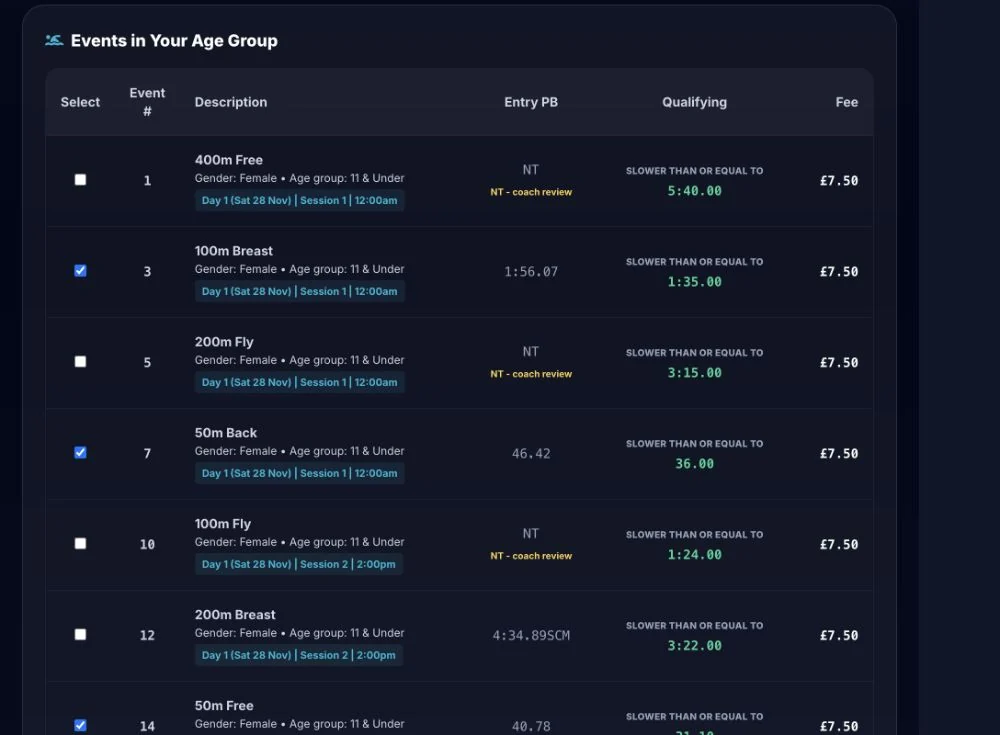
  4. Choose the swimmer, then tick the events they are eligible to enter.
  5. Check the entry PB, qualifying time, and fee beside each event, then review the estimated total.
  6. Save the entry. It then appears under Open & Entered Meets on the dashboard, where you can change it while entries are still open.

Nothing to tick for one of the events?

Meet entry needs an active, linked swimmer with entry permission and the required Swim England Club Compete category. Age group, gender, qualifying times, the organiser’s conditions, the maximum number of events, and the club deadline can all restrict what appears.
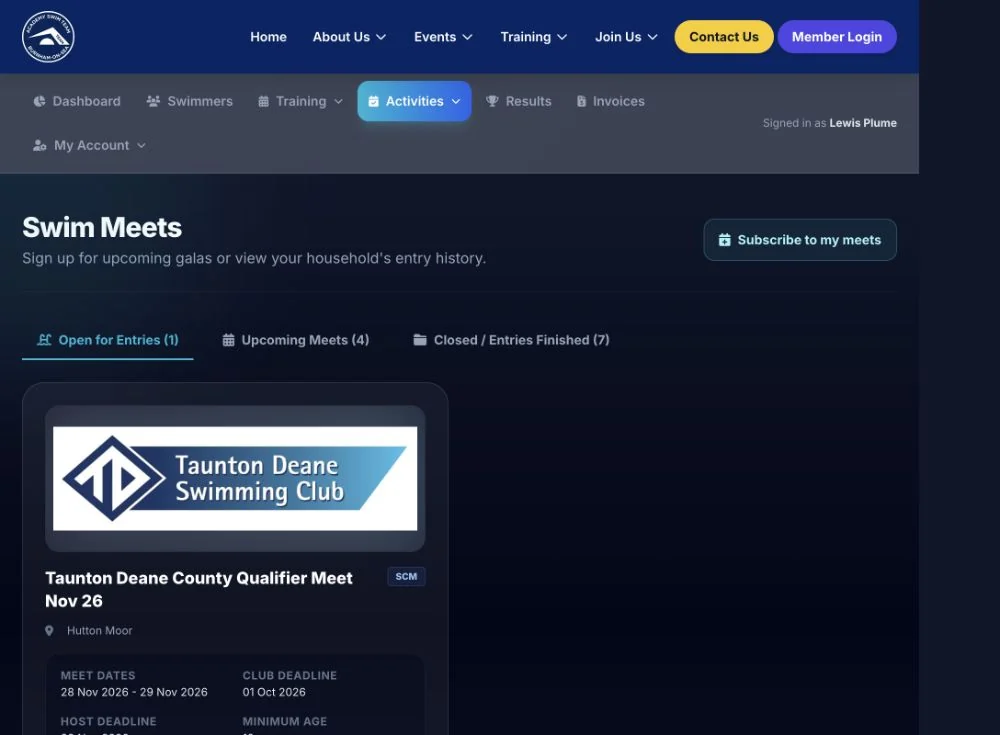
Swim Meets in the AST Members Portal showing Open for Entries and Upcoming Meets tabs
1 meets open for entry now · 2 announced but not yet open · 3 open a meet for the deadline, venue, and course.
Eligible meet events with entry personal bests, qualifying times, sessions, and fees
1 tick the events to enter · 2 the swimmer’s entry PB · 3 the qualifying time, session, and fee.

Official meet entry

Choose the events with the facts beside them

Select the swimmer, review the events they are eligible for, then tick the events you want and submit before the club deadline.

  1. Tick the events to enter.
  2. Check the entry PB the club holds.
  3. Check the qualifying time, the session, and the fee per event.
  4. Review the estimated total, then save the entry.

Galas

Confirm your gala sign-up

Galas are club-organised events where the coaches choose the races. Open Activities → Galas and confirm for each invited swimmer.
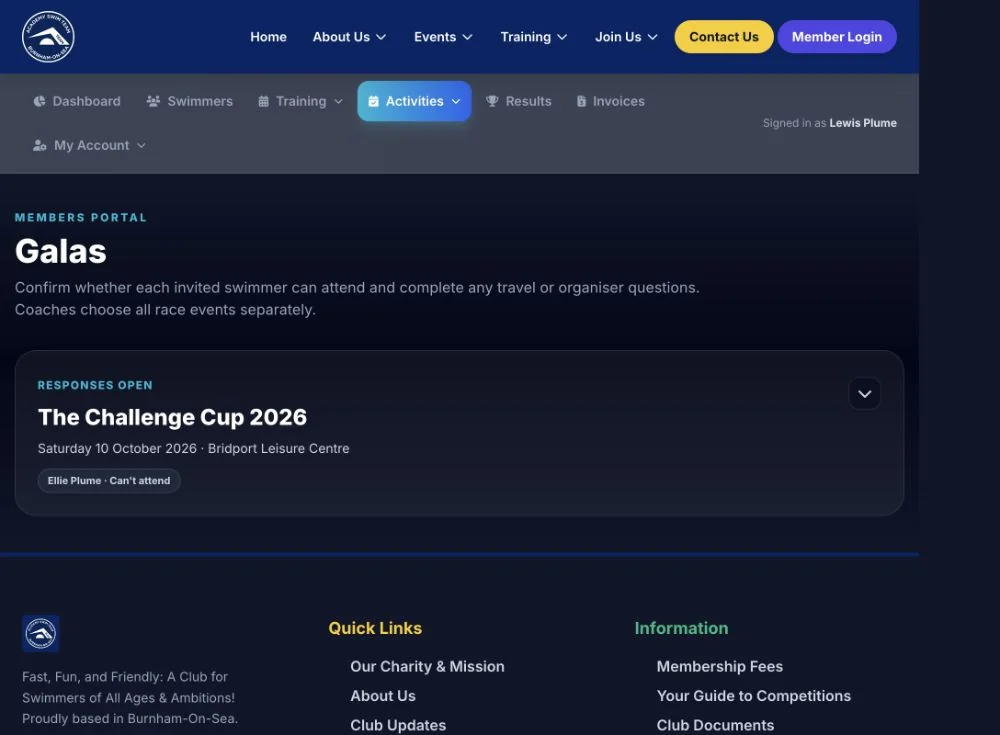
  1. Check whether sign-up is open.
  2. Read the date, venue, and any travel or organiser notes.
  3. Record the response for each swimmer.
Galas in the AST Members Portal showing an open sign-up
1 whether sign-up is open · 2 the response recorded for each swimmer.
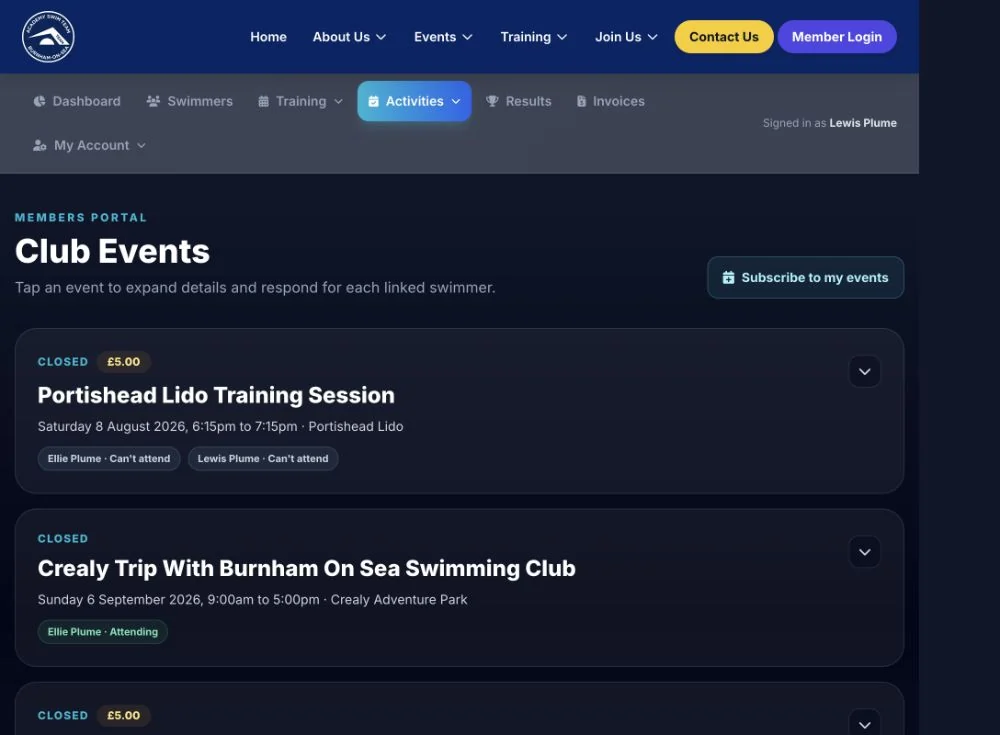
Club Events in the AST Members Portal with per-swimmer responses
1 open or closed status · 2 price where a cost applies · 3 each swimmer’s saved response · 4 subscribe to the club calendar.

Club events

Respond for each swimmer

Open Activities → Club Events. You answer once per invited swimmer, and the coach sees the totals.

  1. Expand the event to read the date, venue, price, and notes.
  2. Choose Attending or Can’t attend for each swimmer.
  3. Add an optional note for the coach, then save.
  4. The chip on the collapsed card shows the latest response, so you can check it later.

Calendar

Add the club calendar to your phone

Subscribe once and the club events your household is attending, plus meets with swimmer entries, appear in your own calendar.

  1. Open My Account → Account details and scroll to My Academy Swim Team Calendar.
  2. Choose Create new private link.
  3. Use the Apple Calendar, Google Calendar, or Outlook button — or copy the link and add it as a subscribed calendar.
  4. Treat the link like a password. To stop it working, choose Disable subscription and create a new one.

How quickly it updates

Club events appear once a swimmer is marked Attending; meets appear once a swimmer has an entry. The calendar service refreshes every 15 minutes, but your calendar app decides when to fetch, so changes can take a few hours to show.
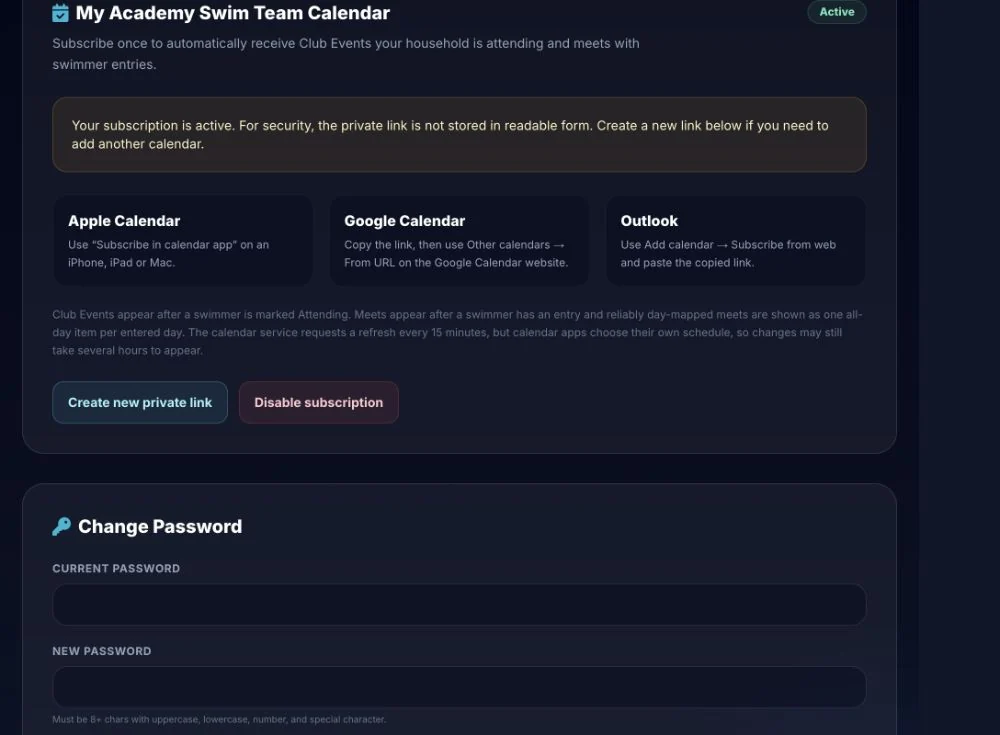
My Academy Swim Team Calendar with Apple, Google, and Outlook options
1 one-tap options for each calendar app · 2 create a fresh private link or disable the current one.
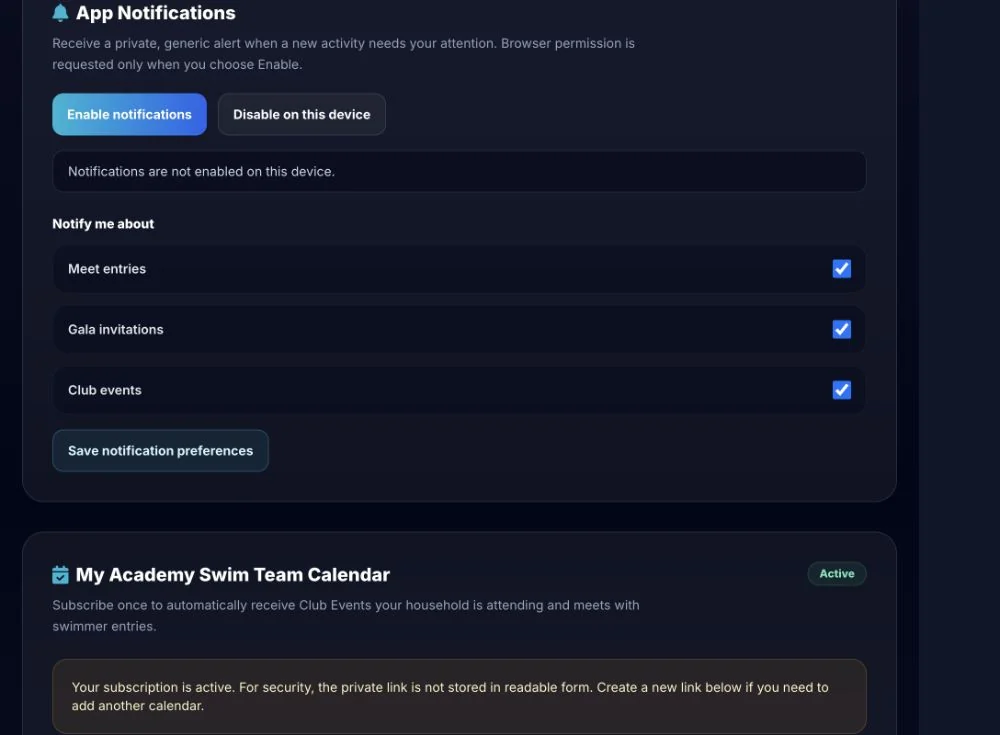
App notification settings with per-activity toggles in the AST Members Portal
1 enable or disable on this device · 2 choose which activity types notify you · 3 save the preferences.

Notifications

Turn on notifications

Notifications nudge you when a new activity needs your attention, so you are not relying on spotting it in the portal.

  1. Open My Account → Account details.
  2. Under App Notifications, choose Enable notifications. Your browser asks for permission only at this point.
  3. Tick the activity types you want: Meet entries, Gala invitations, and Club events.
  4. Choose Save notification preferences.
  5. To stop them on one device, choose Disable on this device.

What the alert contains

Alerts are deliberately generic — they tell you something needs attention and link back to the portal. Swimmer names, times, and payment detail stay behind the login.

On your phone

The same controls on a phone

Every screen in this guide is the same layout on a phone, including the calendar and notification settings. The portal menu stacks, and the important buttons stay where you expect them.
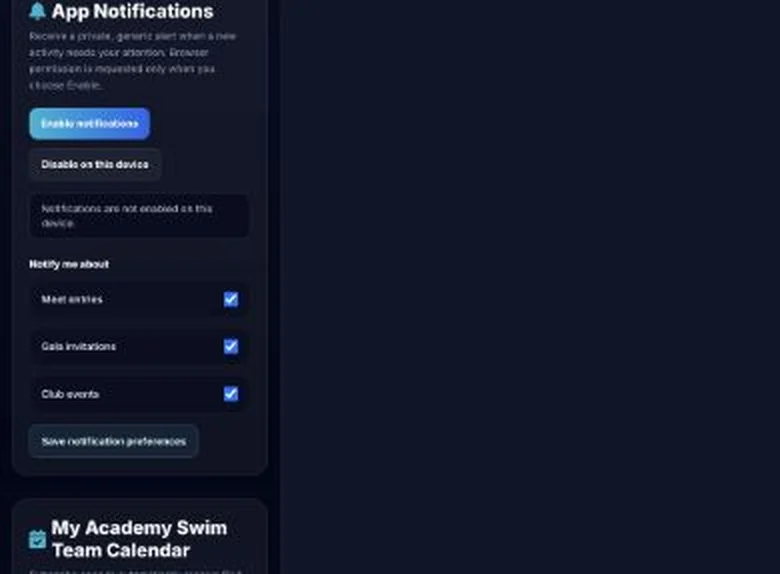
Notification preferences shown on a phone-width screen
1 the notification controls on a phone. The calendar section sits directly below.
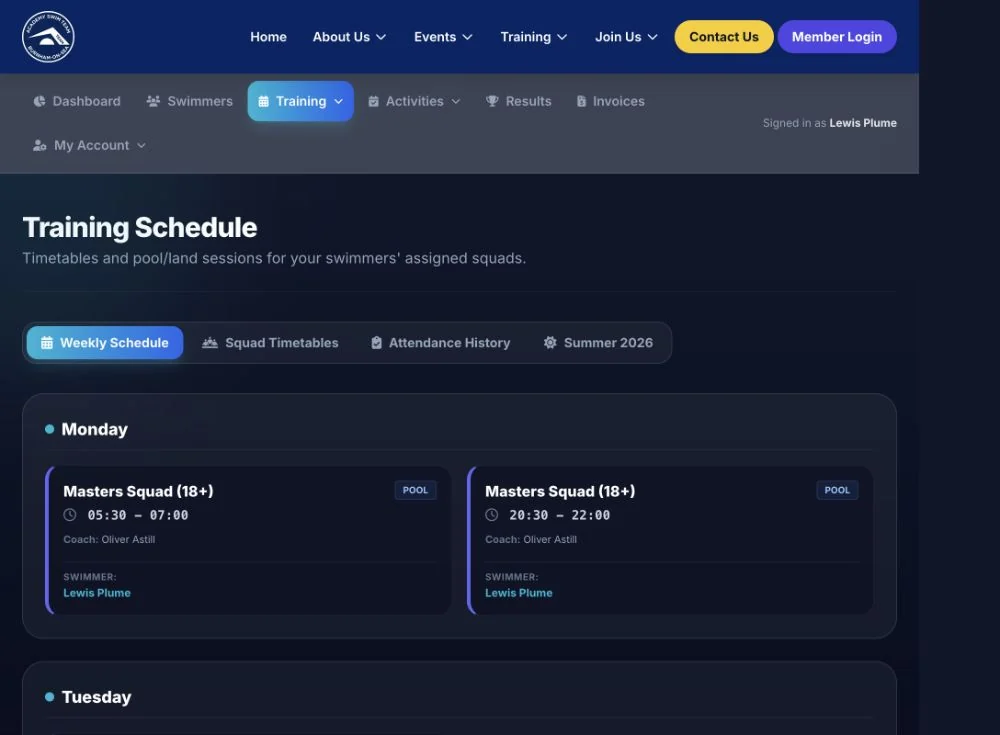
Weekly training schedule showing squad sessions, times, coach, and swimmer
1 weekly, squad, attendance, and seasonal views · 2 the day of the week · 3 squad, session type, time, coach, and swimmer.

Training

Check times, registers, and test sets

The training view matches each linked swimmer to the sessions for their assigned squad.

  1. Open Training → Schedule.
  2. Use Weekly Schedule for a day-by-day family view or Squad Timetables for squad totals.
  3. Use Attendance History for submitted register marks, and the seasonal tab when a holiday timetable replaces the normal week.
  4. Open Training → Test Sets for coach-recorded test measures, compared against that swimmer’s own earlier results.
  5. Where the club uses it, Self-Led Training appears for members with an eligible programme.

Results and progress

Review results and check qualifying times

Results are loaded and maintained by authorised club administrators. Members can review them but do not edit official times.

  1. Open Results and choose the swimmer.
  2. Switch between Personal Bests, Results History, and Time Progression.
  3. Toggle Short Course and Long Course — a time in one course is not the same as the other.
  4. Look for the licensed marker on results swum at licensed meets.
  5. Open Activities → Qualify Checker to see which events a swimmer currently has qualifying times for.

The Qualify Checker is guidance

It compares the licensed times the club holds against the published standards. It does not replace the organiser’s own entry conditions, and it does not confirm an entry.
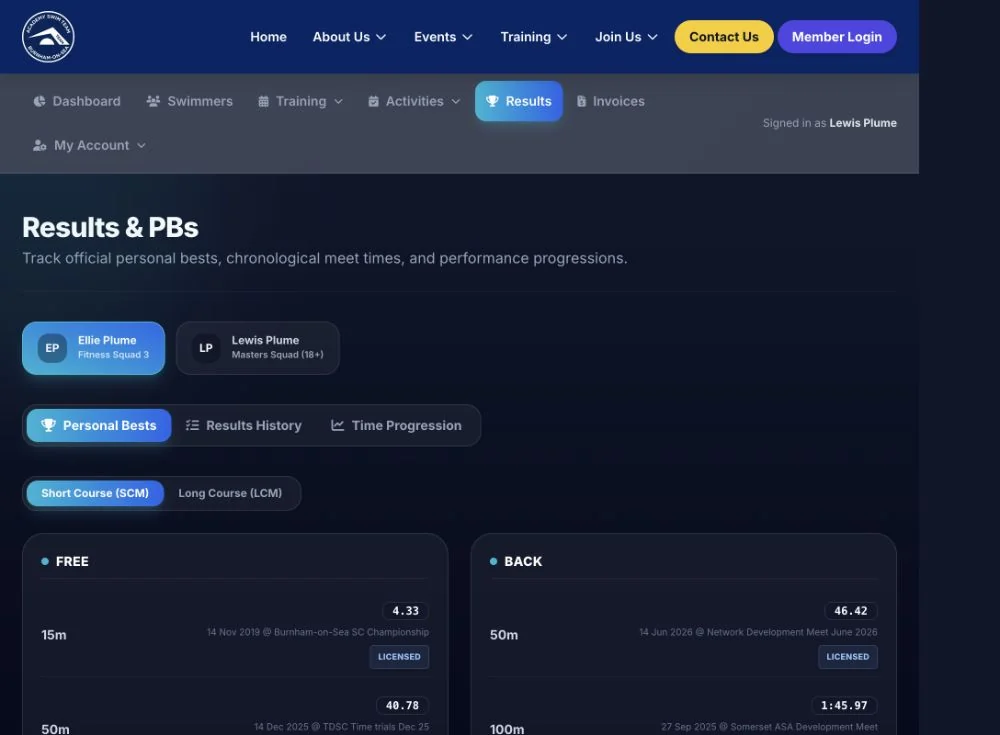
Personal bests grouped by stroke with a course toggle in the AST Members Portal
1 choose the swimmer · 2 personal bests, history, or progression · 3 short or long course · 4 the time and the meet it was swum at.
The household invoice ledger with status filters and payment state
1 filter or search the ledger · 2 recipient, description, dates, amount, and paid state.

Billing

Review invoices and payments

The ledger shows what the household has been charged, what has been collected, and what is scheduled.

  1. Open Invoices.
  2. Filter by All, Upcoming, Paid, or Voided, or search for an invoice.
  3. Open an invoice to see the recipient, line items, dates, totals, and payment status.

Scheduled membership invoices

A scheduled membership invoice normally needs no action, because collection is handled automatically by Direct Debit. Contact the Treasurer if payment details have changed or an invoice looks wrong.

Your household

Update swimmer and account details

Swimmer records drive squads, meet eligibility, and billing, so important changes are reviewed by an administrator rather than applied straight away.

  1. Open Swimmers and choose a swimmer to see squad, category, and granted permissions.
  2. Use Edit Details to request changes to address, guardians, emergency contacts, medical information, medication, and photo or video consent.
  3. Use My Account → Account details to change your password and manage your calendar and notification settings.
  4. If a volunteer profile is linked, My Volunteering shows roles, DBS and safeguarding dates, and a form to request contact changes.

Requests, not silent edits

Change requests go to an administrator for review and do not overwrite the club record immediately. This keeps the information coaches and the club rely on accurate.
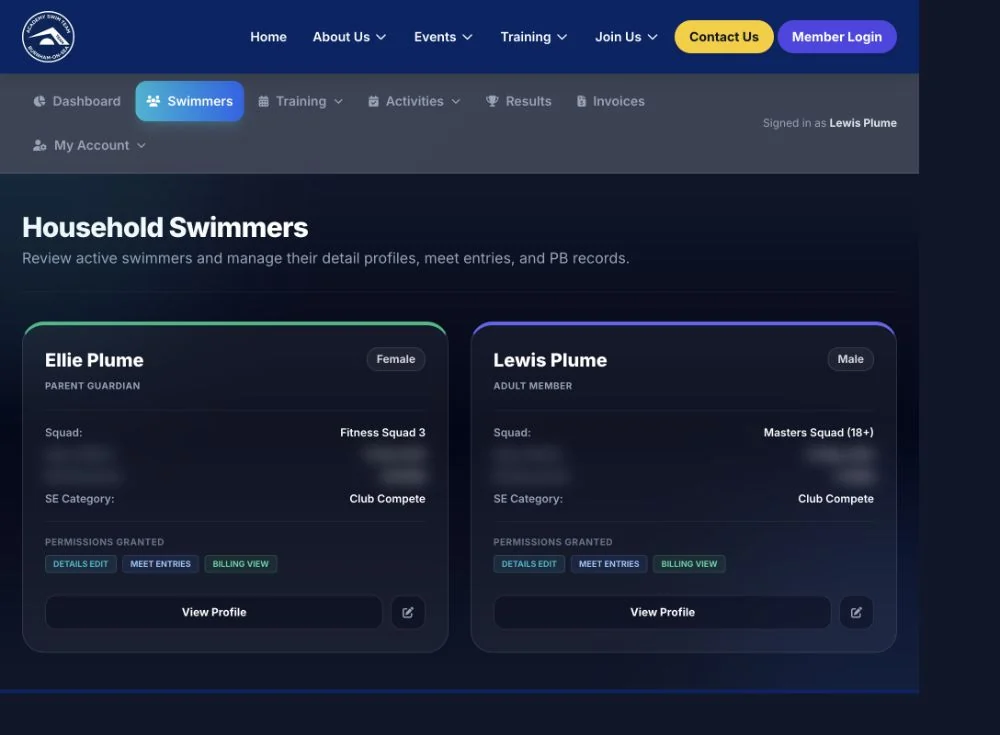
Household swimmers with squad, category, granted permissions, and profile links
1 each linked swimmer with squad and category · 2 what this account is allowed to do · 3 open the full profile.

What families gain

Practical benefits every week

  • One household view: switch between linked swimmers without a separate account for every child.
  • Fewer missed details: notifications, the club calendar, and per-swimmer responses keep deadlines visible.
  • Safer meet choices: the entry page narrows events using the swimmer, course, age, gender, qualification rules, and recorded times.
  • Clear history: results, entries, attendance, invoices, and saved responses stay available for later checking.
  • Controlled changes: families can request important record updates without silently changing information used by coaches.

Members Portal and Spond

They work together, but they have different jobs

Use the Members Portal for

Official competition entries, gala and club event responses, training and attendance, results and qualifying times, invoices and billing, the club calendar, and record-change requests.

Use Spond for

Club messages, reminders, general updates, and the day-to-day chatter organised through the Spond app.

Responding to a competition message in Spond does not submit an official meet entry. Complete the entry in the Members Portal before the club deadline.

Permissions and responsibilities

What remains with the club

The portal is the family view and action point. Authorised administrators remain responsible for:

Accepting membership and linking household access.

Assigning squads and publishing timetable changes.

Submitting registers and attendance records.

Importing or maintaining results, PBs, and test sets.

Creating meets, galas, deadlines, events, and eligibility rules.

Raising invoices and preparing or collecting payments.

Reviewing member and volunteer change requests.

Setting which linked users may manage details, enter meets, or view billing.

Ready to use your portal?

If the club has sent your invitation, set the password within 24 hours and sign in with the invited email address. Once inside, add the club calendar and turn on notifications so the next deadline reaches you.

Portal screenshots were captured from an authorised household session on 27 September 2026. Personal identifiers, dates of birth, contact details, and payment references have been blurred.